





An AirTag can make everyday items such as keys, luggage, and backpacks easier to locate. Setup takes only a few minutes when your Apple device and account are ready.
Before you begin
- Update your iPhone or iPad to the latest available software.
- Turn on Bluetooth and Location Services.
- Make sure Find My and the Find My network are enabled.
- Finish any pending Apple Account setup prompts.
Apple currently requires iOS or iPadOS 14.5 or later for the original AirTag, while AirTag (2nd generation) requires iOS or iPadOS 26.2.1 or later.
Pair your AirTag
- Remove the battery tab, then hold the AirTag close to your unlocked iPhone or iPad.
- Tap Connect when the setup card appears.
- Choose a category or create a custom name that clearly matches the item.
- Tap Agree or Continue to link the AirTag to your Apple Account.
- Tap Done.
You can also open Find My, choose Items, tap the add button, and select AirTag or Other Item.
A few thoughtful setup habits
- Use a specific name such as “Black Carry-On” instead of “Luggage.”
- Secure the AirTag holder before traveling.
- Open Find My before departure to confirm that the item appears.
- Keep the physical identification on your luggage current too. A tracker complements a visible name and contact tag; it does not replace one.
Where should you put an AirTag?
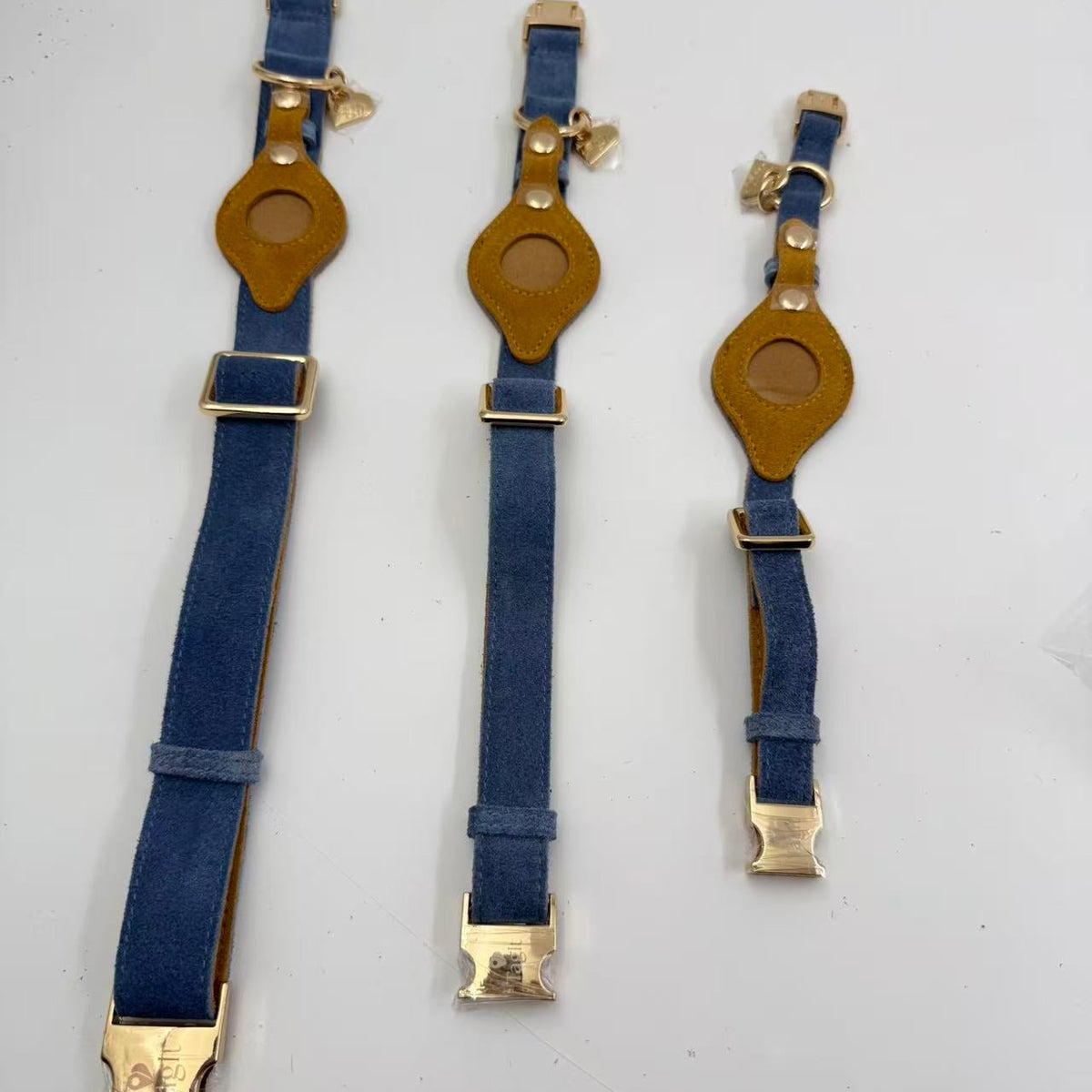
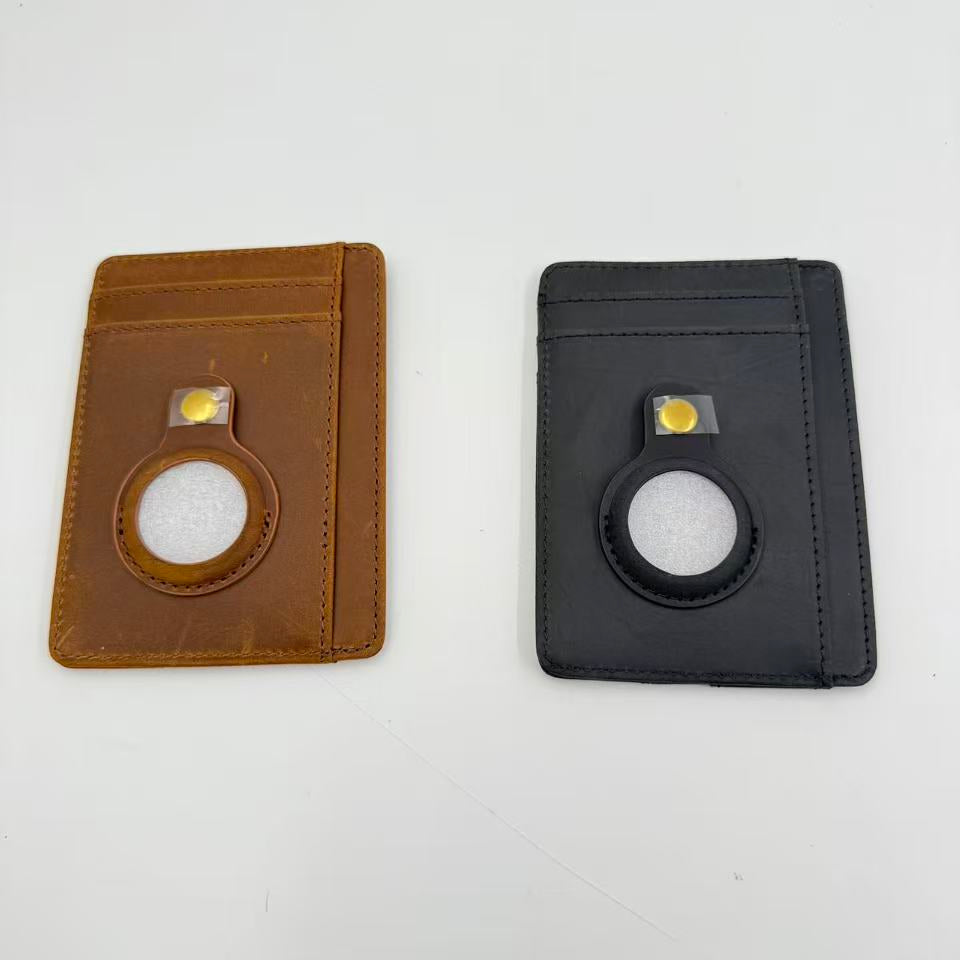
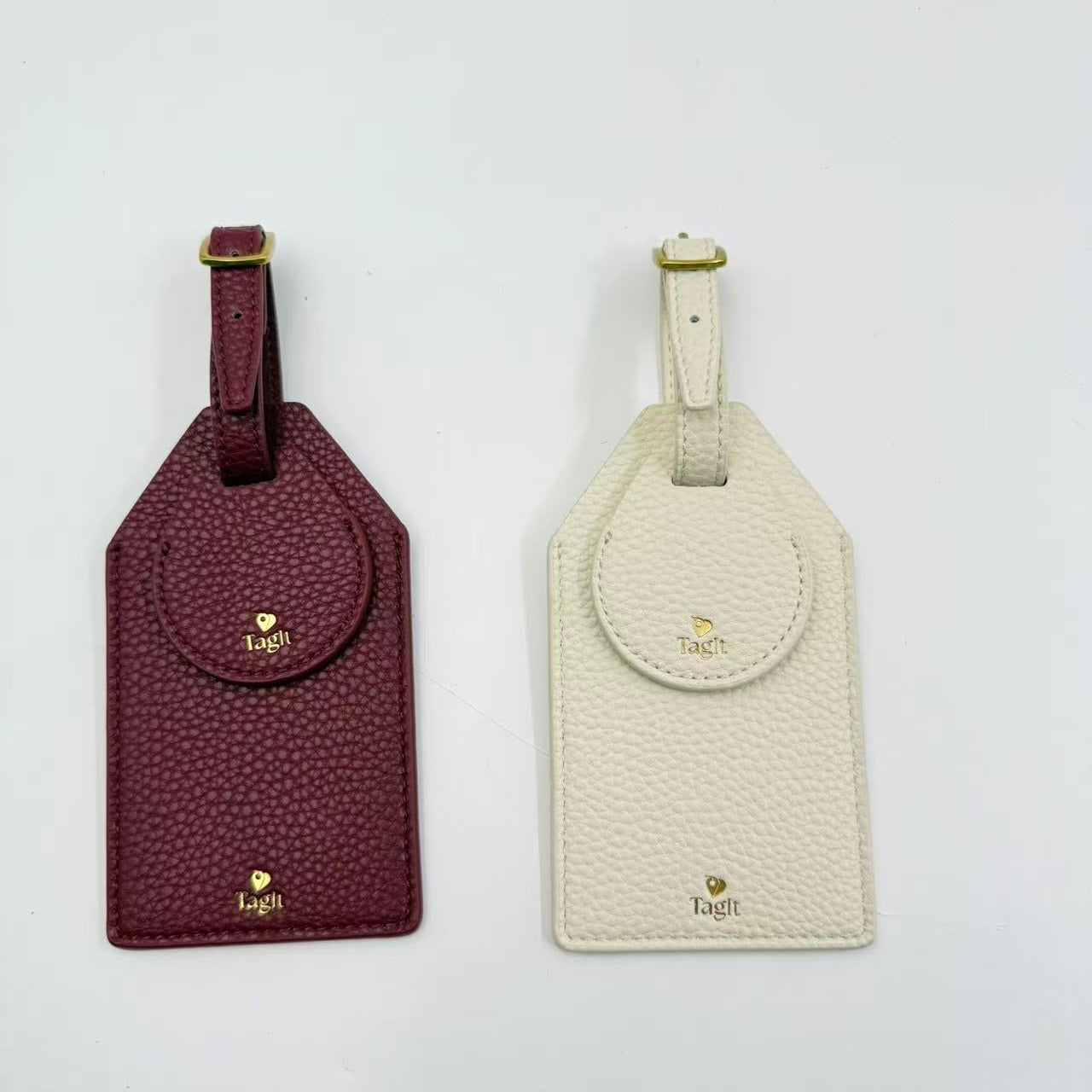
For everyday belongings, the best location is one that keeps the AirTag secure without making the item awkward to use. For travel, a luggage tag with a discreet tracker holder keeps identification and the tracker together. For daily carry, a tracker-ready wallet or accessory can keep the technology tucked into something you already use.
If your AirTag will not connect
Bring only one unpaired AirTag near your device, confirm Bluetooth and Find My settings, restart the device, and try again. If the setup animation disappears, lock and wake your device, then wait briefly for it to return. A depleted battery or an AirTag that needs resetting can also prevent setup.
Quick answers
Does AirTag need a subscription? No Find My subscription is required for AirTag itself.
Can AirTag replace a luggage ID tag? No. Keep visible identification on your luggage so an airline or finder can contact you directly.
Is AirTag the same as GPS? No. AirTag relies on Apple’s Find My network rather than functioning like a standalone GPS-and-cellular tracker. Read our AirTag vs. GPS guide for the difference.
Privacy note: AirTag is designed for tracking personal belongings. Never use it to track a person or property that does not belong to you.
